Before we begin, let's understand what an airSlate Workflow is.
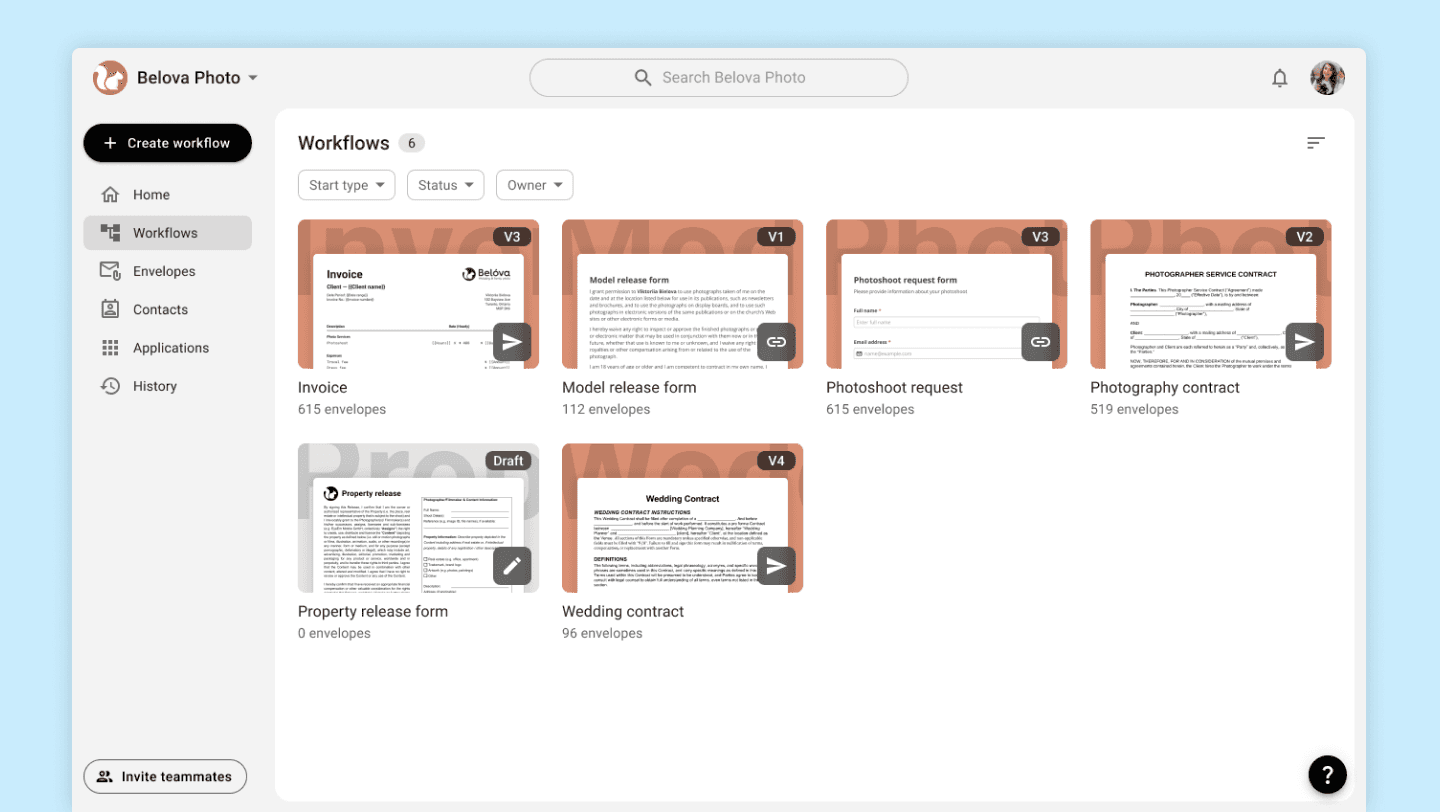
A workflow is a combination of documents, advanced step-by-step logic for filling them out, and integration with external systems (such as Salesforce, Google Spreadsheets, Dropbox, etc.). This integration allows data to be transferred to these external systems and used to fill out documents with data from those same systems.
A good analogy for an airSlate Workflow can be the following formula: Zapier + Documents = airSlate Workflow.
Workflows
Like any other document or template, a Workflow can be sent via email or phone, shared via a link, embedded in a website, and more. The key difference is that you can precisely configure every aspect of the Workflow's behavior.
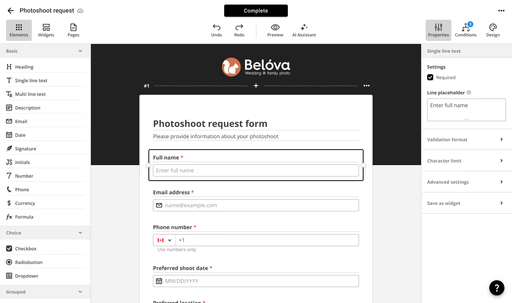
Let's look at an example: I am a photographer and want to automate the process of booking photoshoots. I created a 'Photoshoot Request' web form, set up data export into Google Spreadsheet and Google Drive. The final step is to add a link in the header of my Instagram profile so that clients can book sessions by following the link and filling out a carefully tailored questionnaire. This process will save me time on direct communication with clients and significantly increase my productivity.
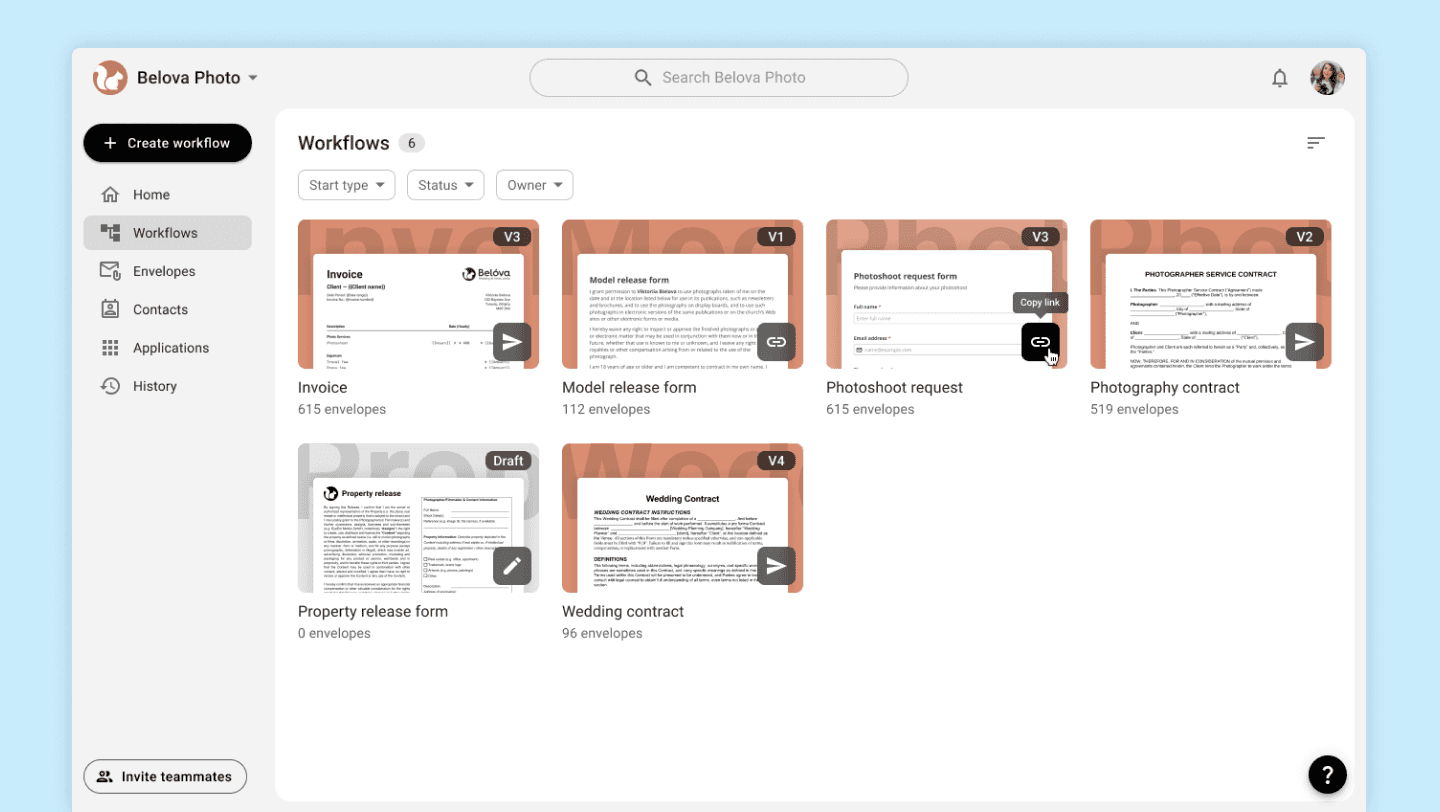
Hover over ‘Copy link’ button 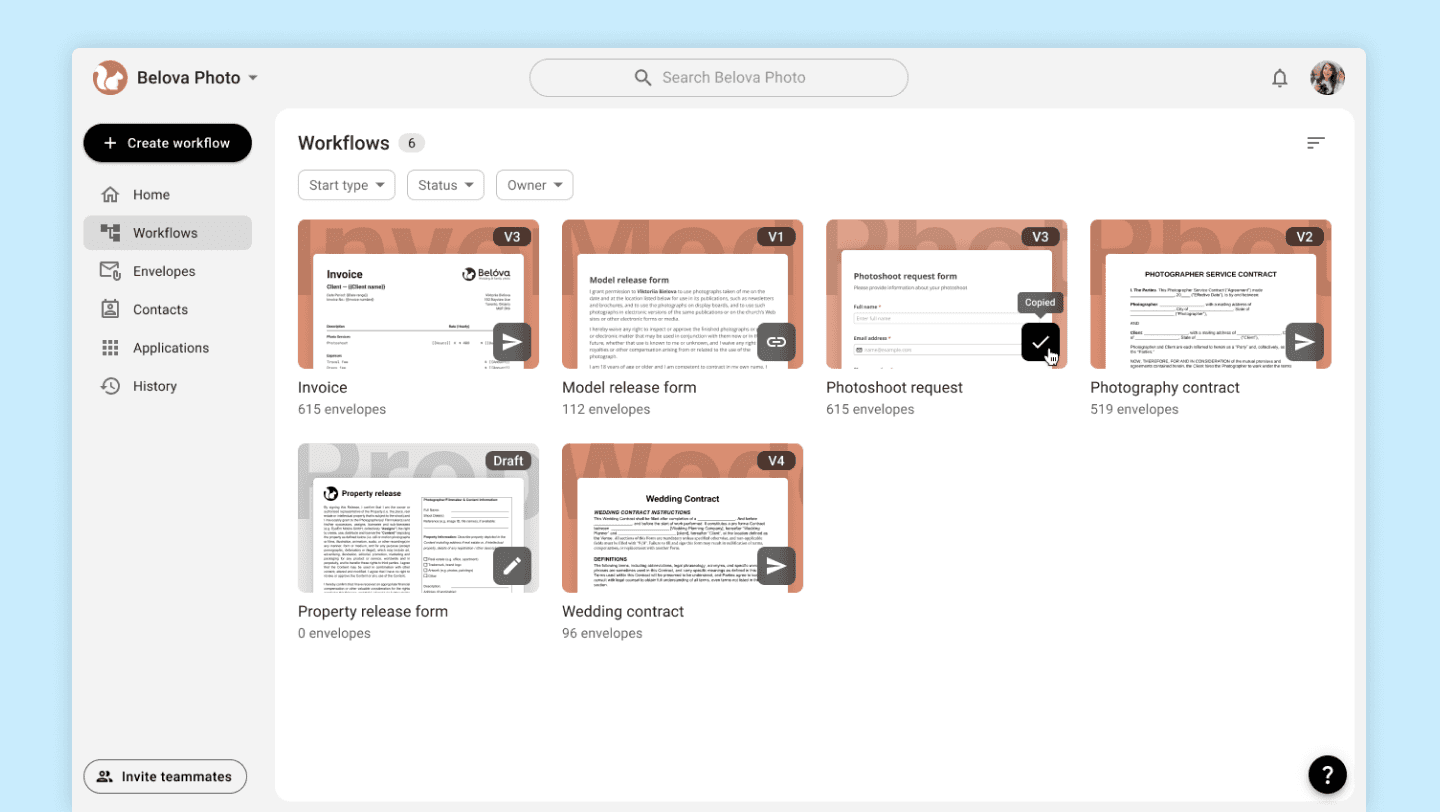
Link copied to the clipboard 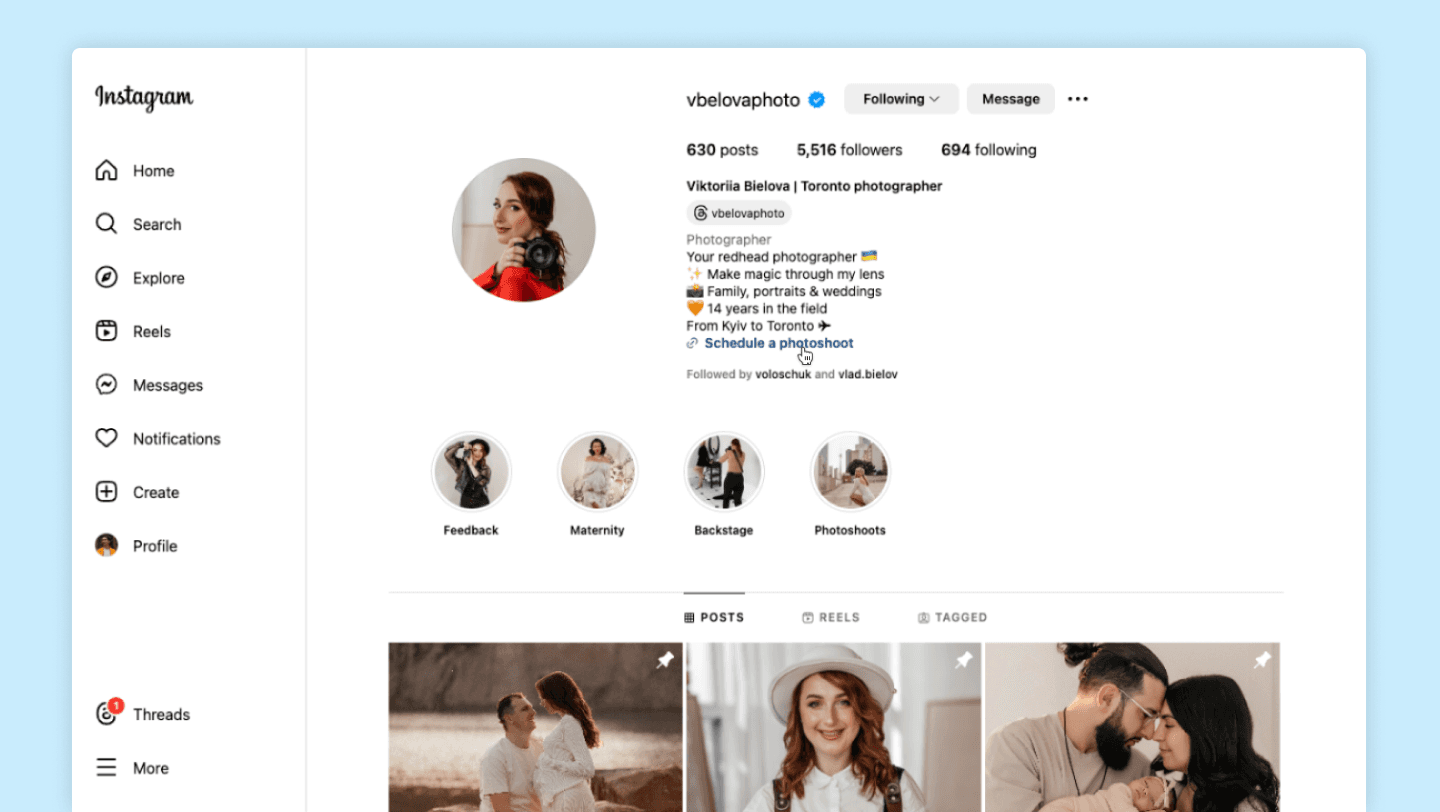
Link added to the photographer's Instagram page 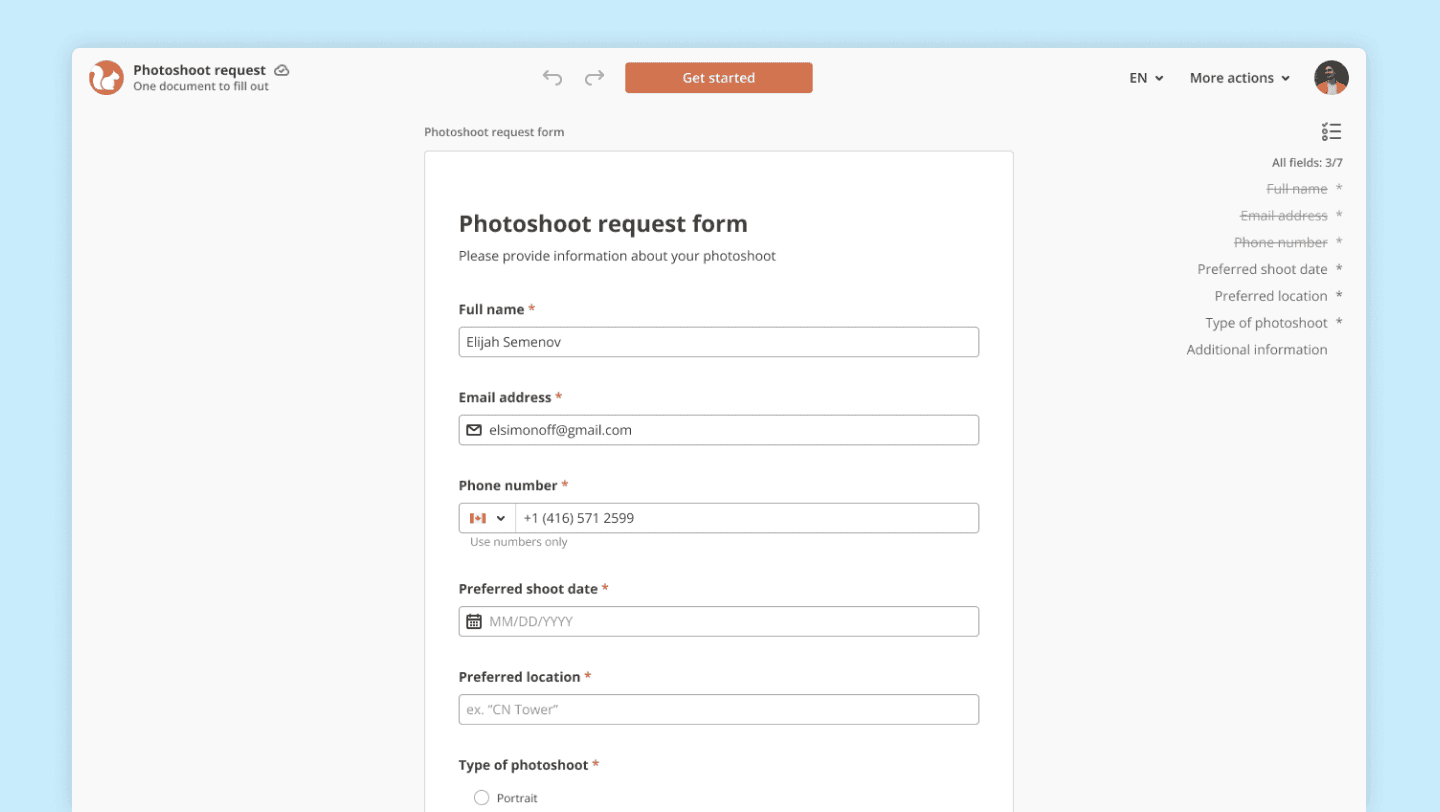
Client's ‘Photoshoot Request’ signing session
Envelopes
"Envelope" is a sent or completed Workflow.
On the Envelopes page, you can view all existing Envelopes, check their status, and perform target actions based on their status (such as open, send a reminder, download, etc.).
You can also open the status page to examine in detail everything that has happened with the Workflow and its documents, as well as what will happen next.
In this example, the photographer sees a new photoshoot request and opens the form to review its details. If the photographer is satisfied, by clicking the "Complete" button, the process moves forward and, in this specific example, sends the client a "Photography contract."
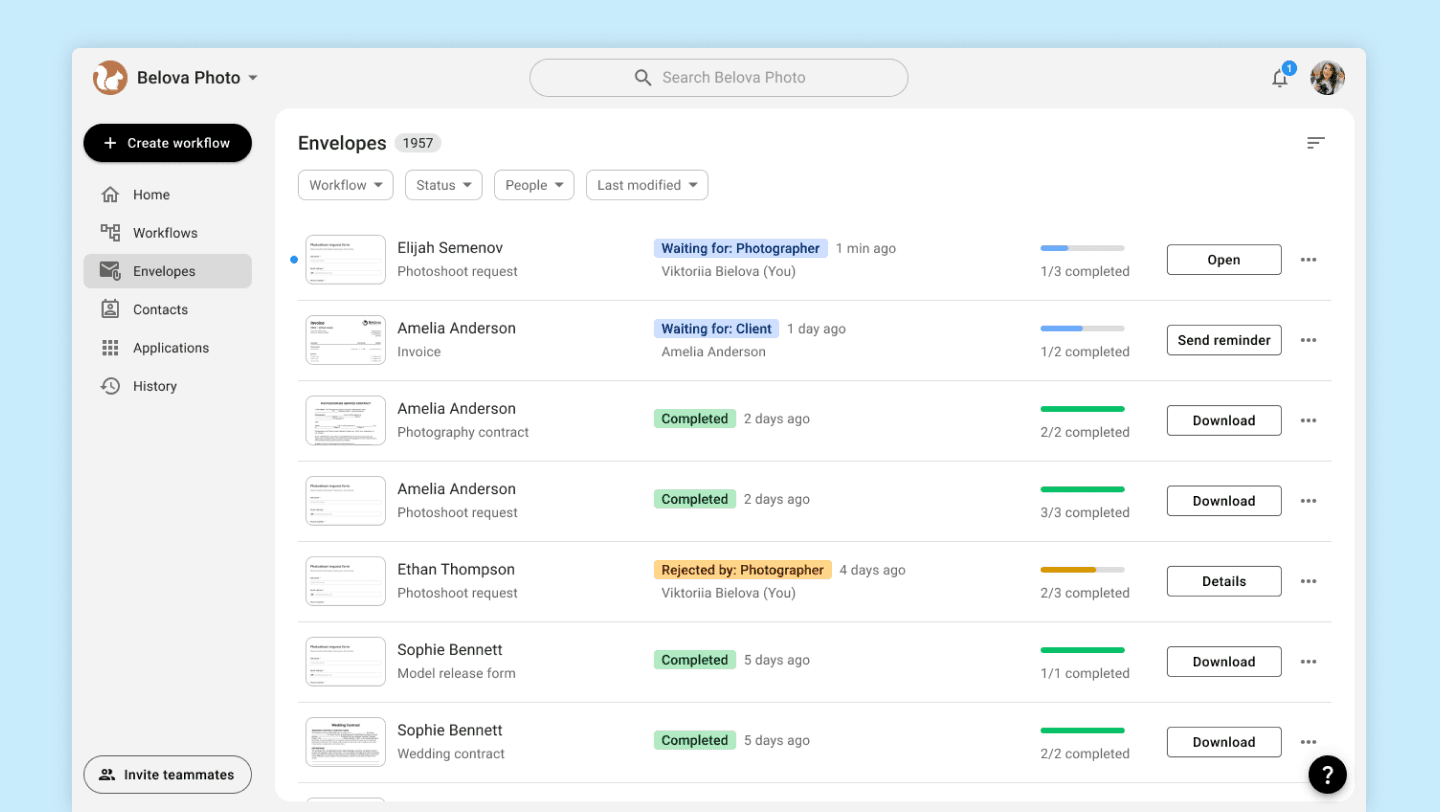
Envelopes page with statuses 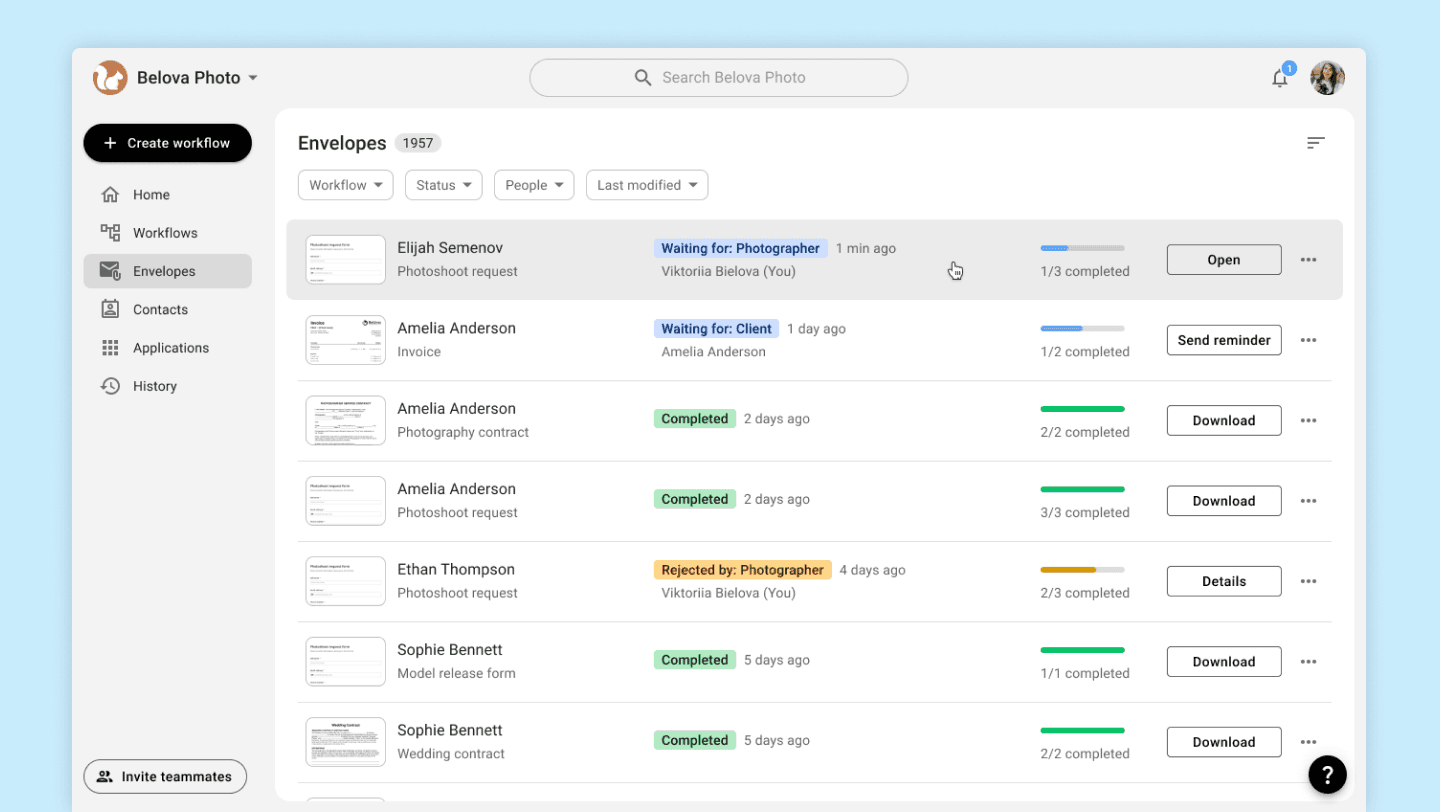
Click on the card to view the status page 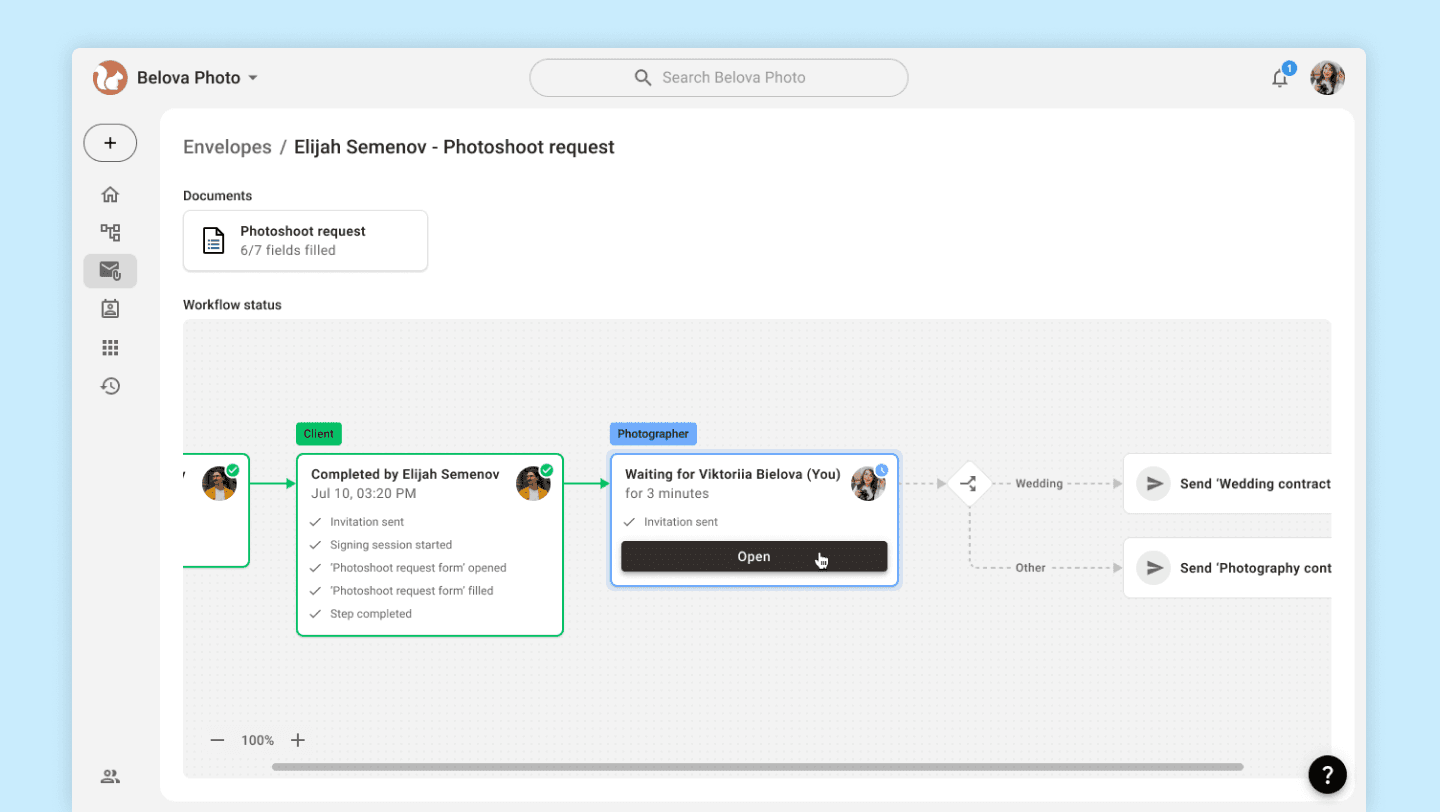
Envelope's status page 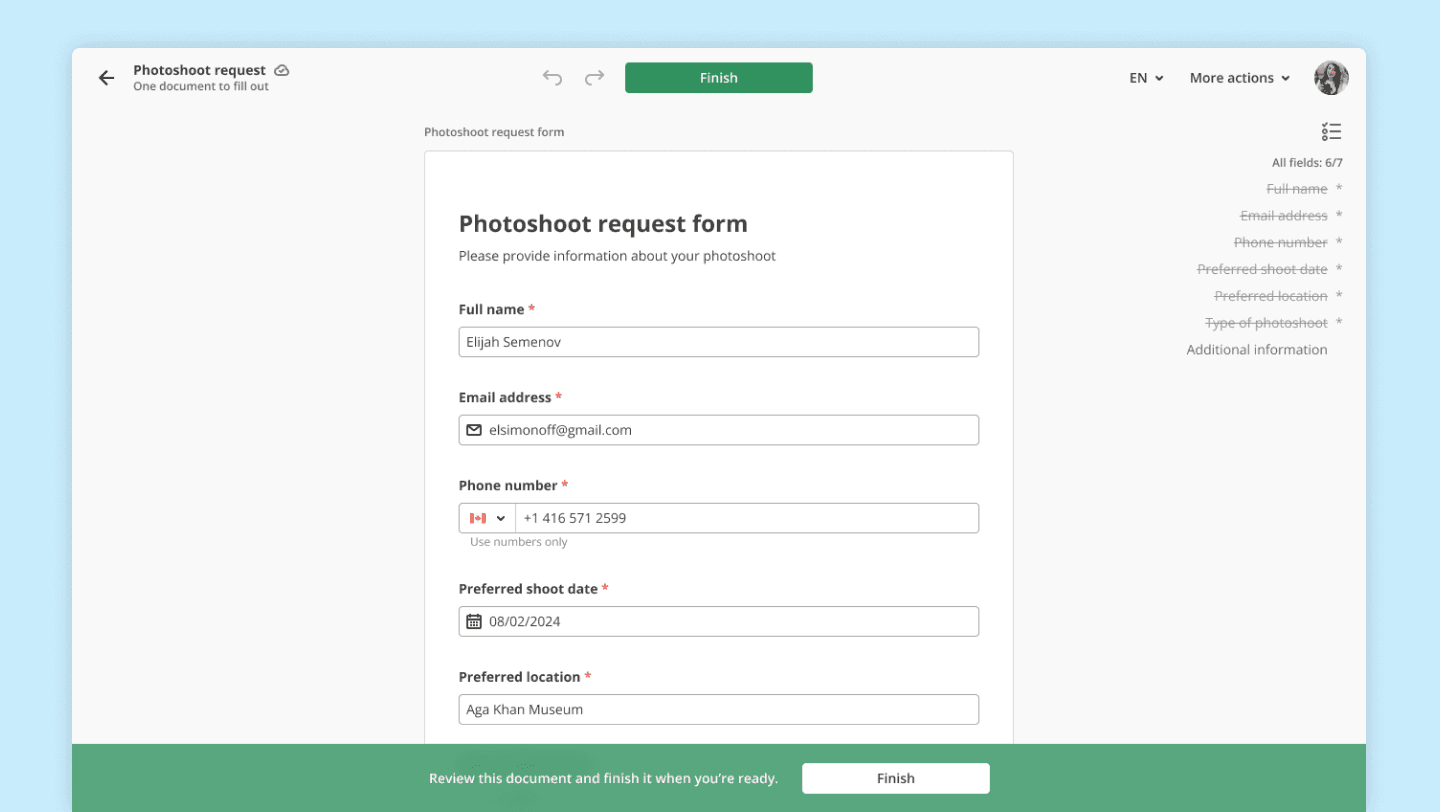
Photographer reviews 'Photoshoot Request' information for approval
Contacts
Contacts is a list of all the people who have interacted with your Workflows, or who have been added manually or imported from other accounts (such as Google Contacts).
This page is convenient for viewing completed Envelopes linked to a specific person. Data from the Envelopes populate information about the person (e.g., full name, email, phone number). Additionally, during subsequent interactions with the same person, all these fields in the document will be automatically filled in.
In our case, the photographer uses this page to connect with clients. Thanks to synchronization with Google Contacts, this information is accessible not only through airSlate Workflow but also via the standard Contacts app on a smartphone.
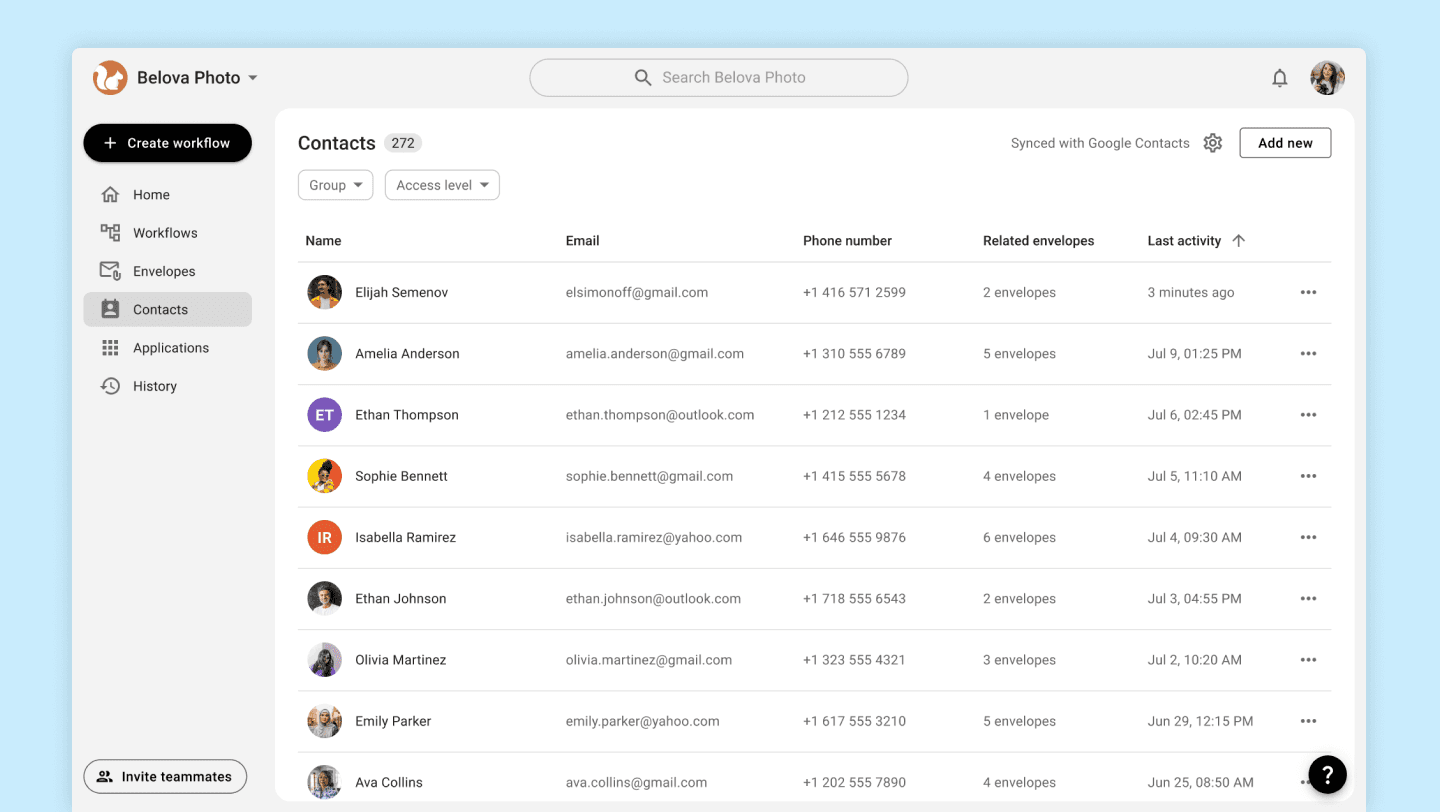
Contact list 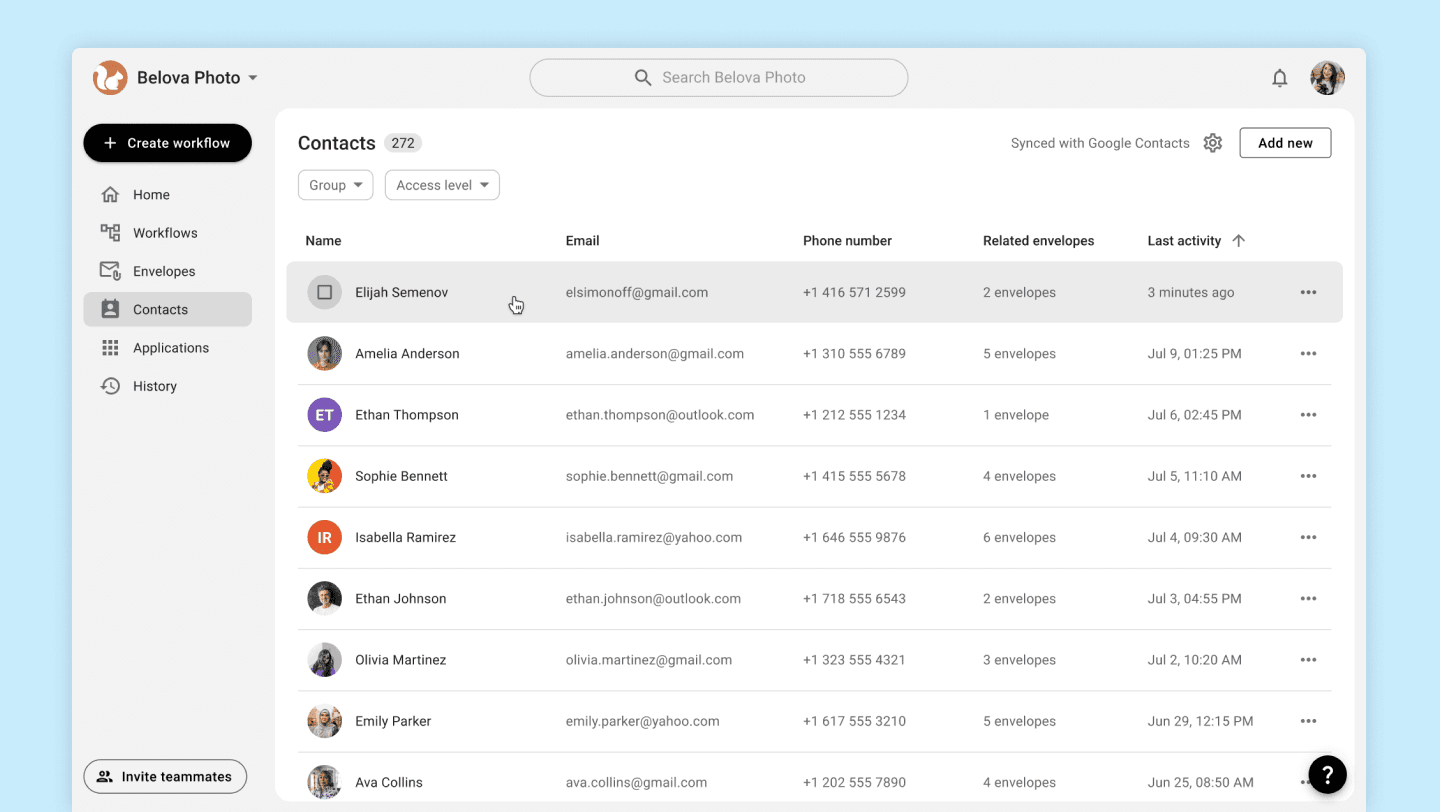
Click on the card to view the contact information details 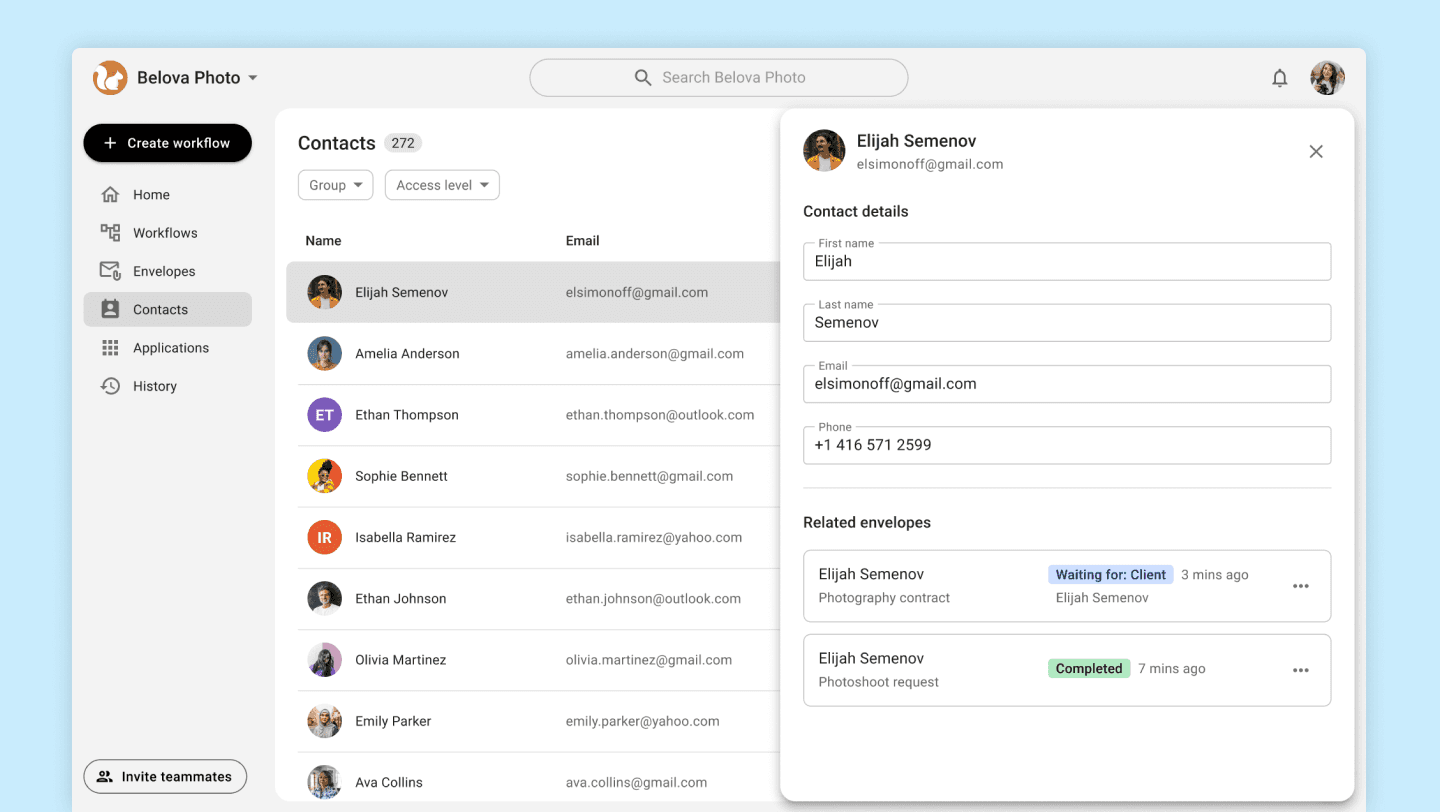
Contact sidebar with related envelopes
Conclusion
In this article, we have reviewed the three main navigation screens of airSlate Workflow, which reflect the core functionality of the product and its value to users.
Pages like Home, Applications, History, Account Settings, Workflow Settings, and many others not covered here are also integral parts of the product's functionality.
Want to see them and learn more about how airSlate Workflow works? Contact me using the information below.