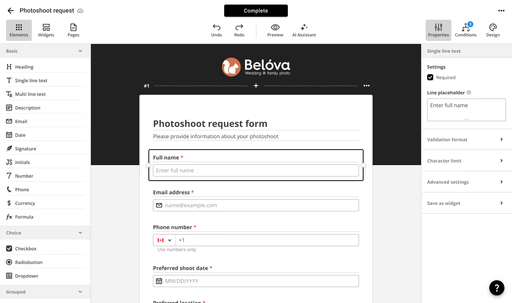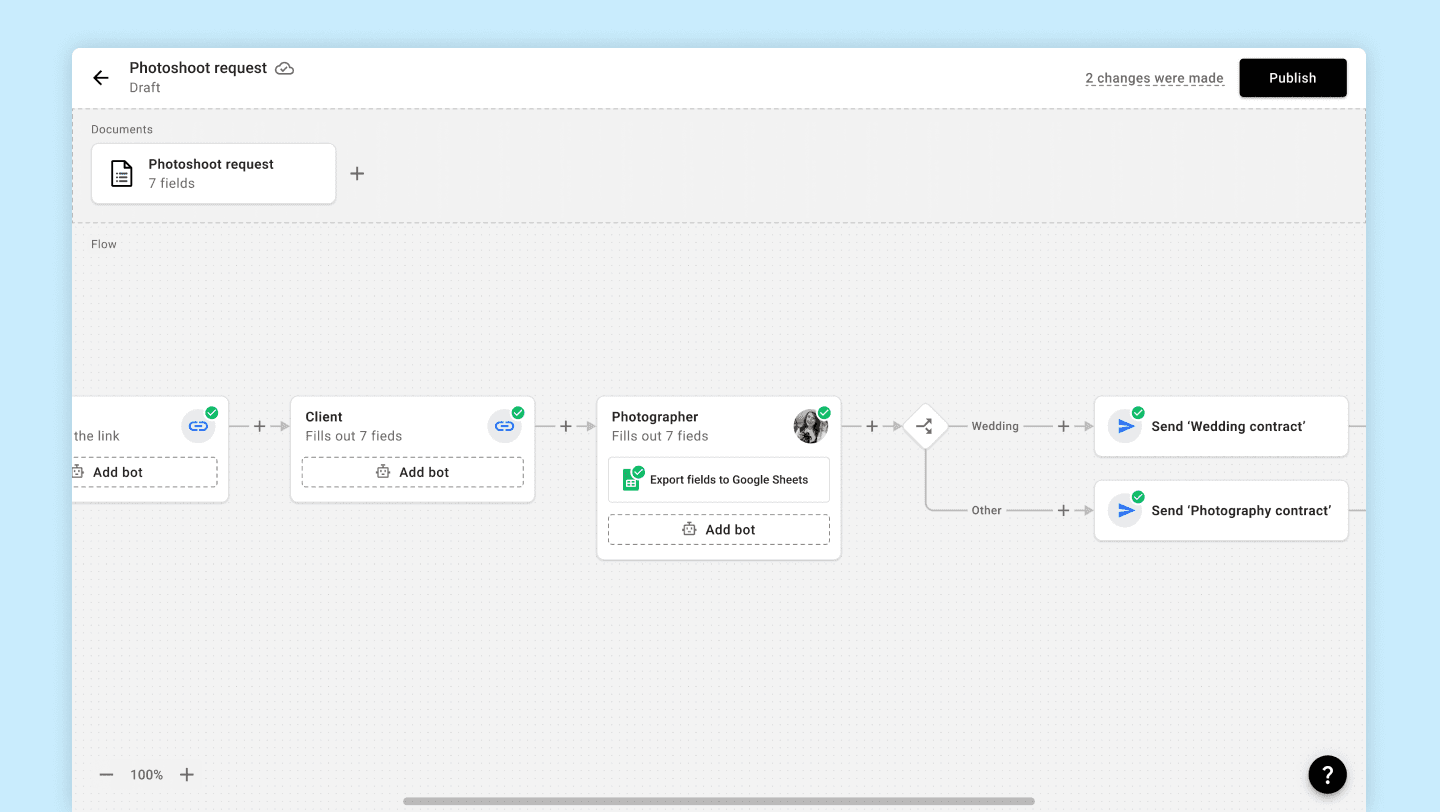
The Workflow Diagram is the heart of airSlate Workflow. This is where documents are added, the sequence and logic of actions are built, and bots are configured to connect airSlate Workflow data with external systems such as CRMs (Salesforce, Dynamics 365, SharePoint, NetSuite, etc.), cloud storage (Dropbox, Google Drive, OneDrive, etc.), productivity tools (Google Spreadsheets, Airtable, etc.), and many others.
Let's explore the process of updating an existing Workflow by adding bots to export signed documents to Google Drive and import data from document fields into Google Spreadsheets.
Diagram overview and add bot functionality
The Diagram in airSlate Workflow consists of several key elements:
Start: This block defines how the Workflow will be initiated (via a link, email, embedding on a website through embedded code, etc.).
Recipient: The person who will fill out the fields in the documents. They can be assigned to a specific email or dynamically assigned using data within the Workflow.
Bot: A no-code configurable application that allows flexible extension of possible actions in the Workflow. For example, exporting signed documents to Google Drive.
Decision: An element for building conditional logic within the Workflow. For example: if the photoshoot type is "Wedding", send a wedding contract; otherwise, send a general photoshoot contract.
Go to: An element that allows you to return to or jump to any step in the process.
Hold: Allows you to pause the Workflow based on certain conditions.
In this section, let's explore the process of adding a bot.
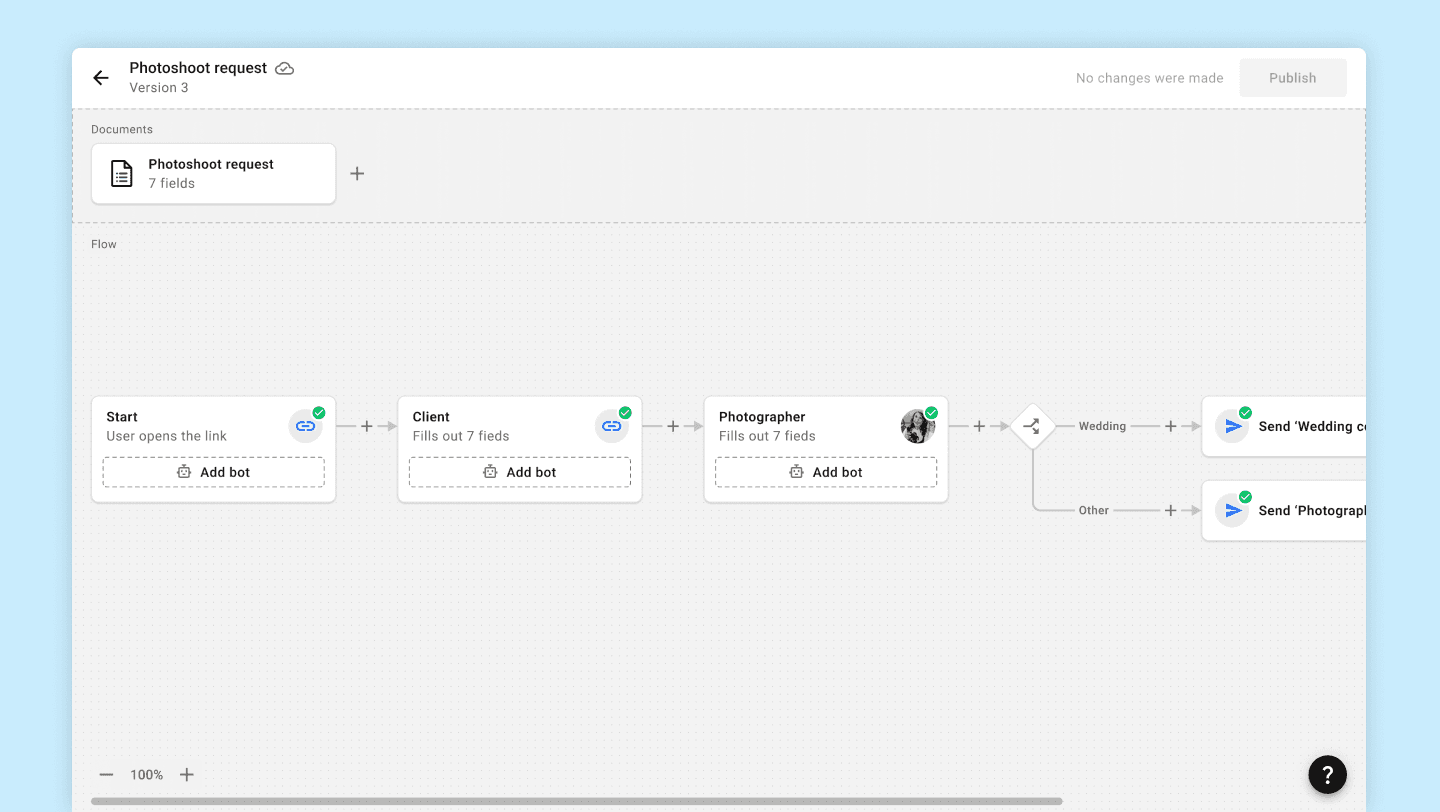
Published workflow in edit mode 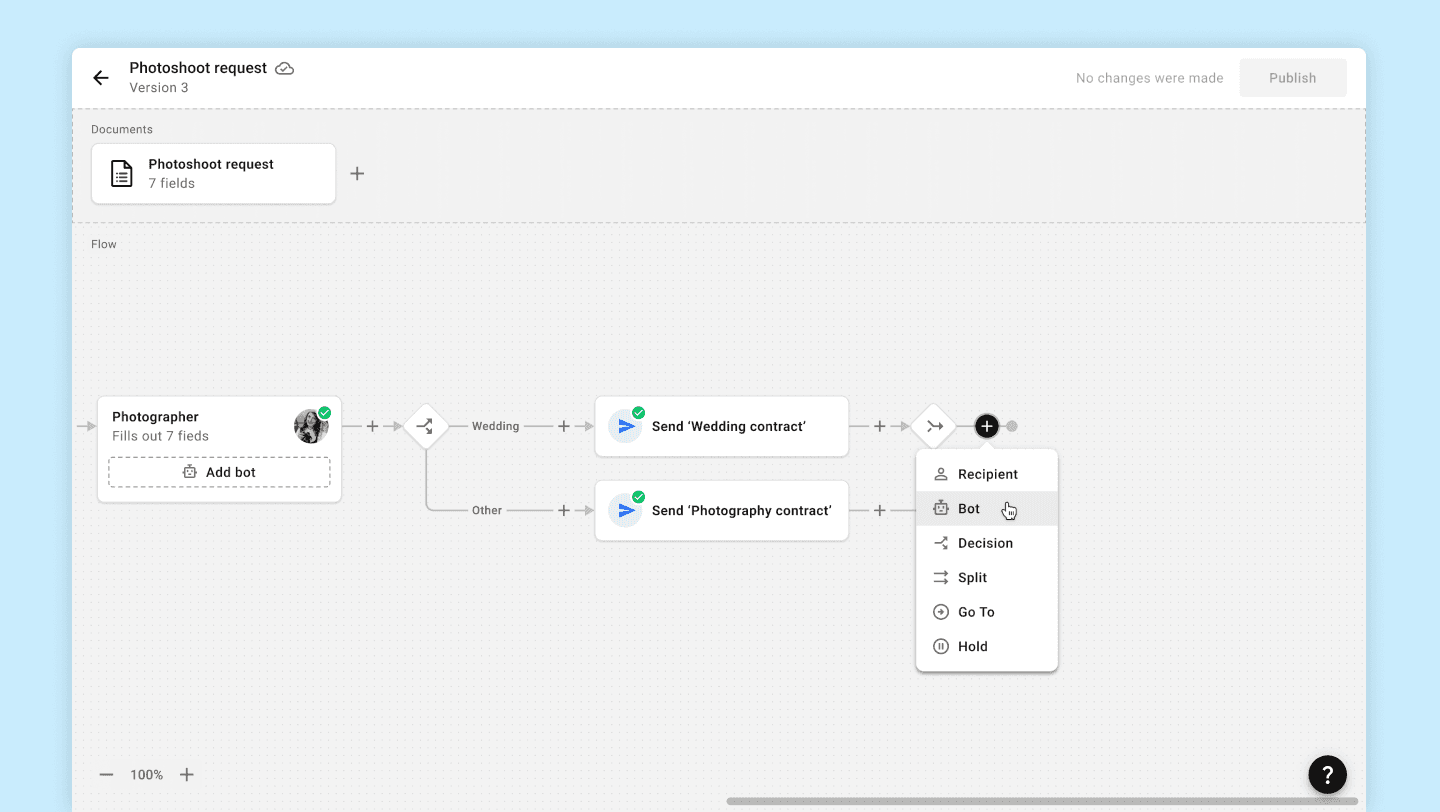
‘Add element’ dropdown menu 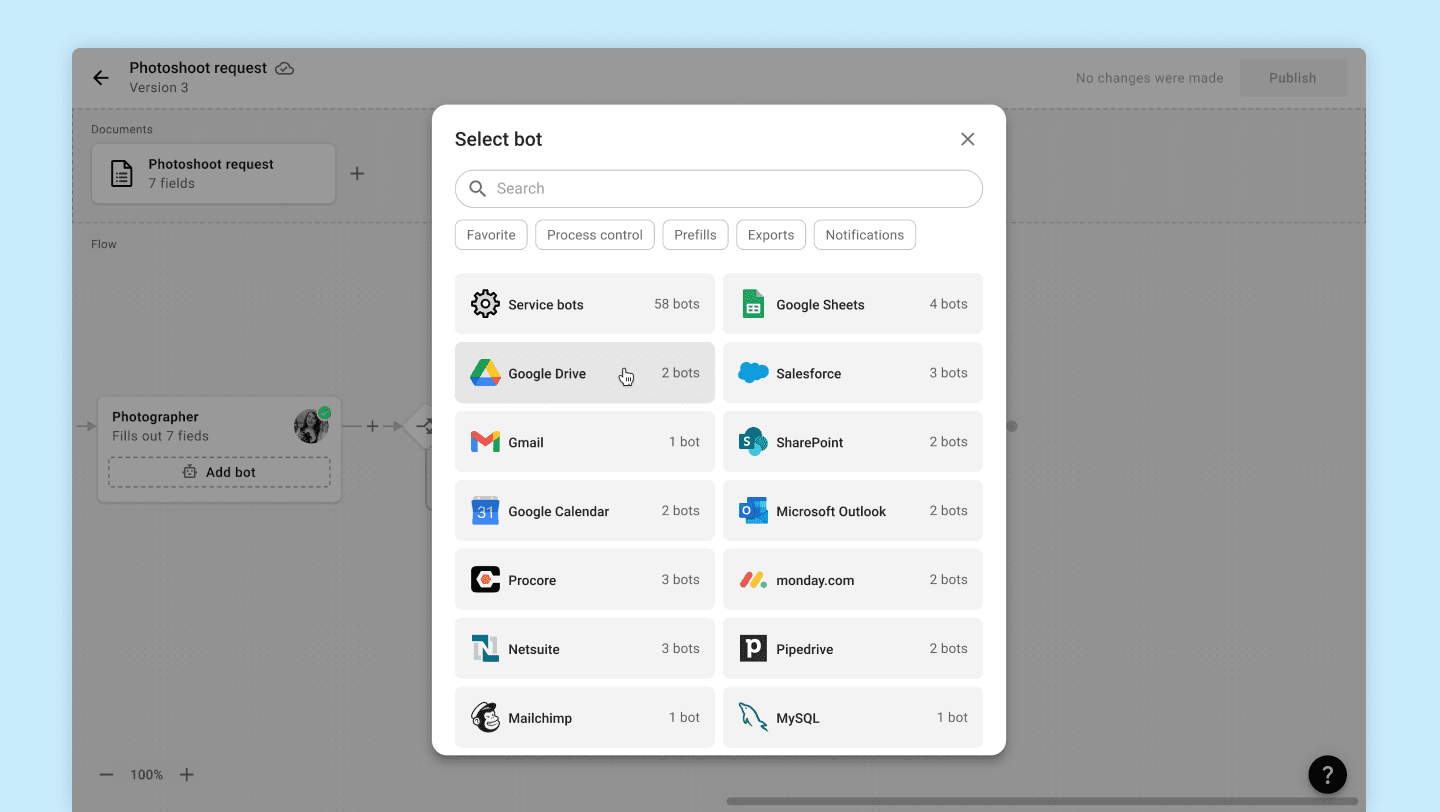
‘Add bot’ modal window 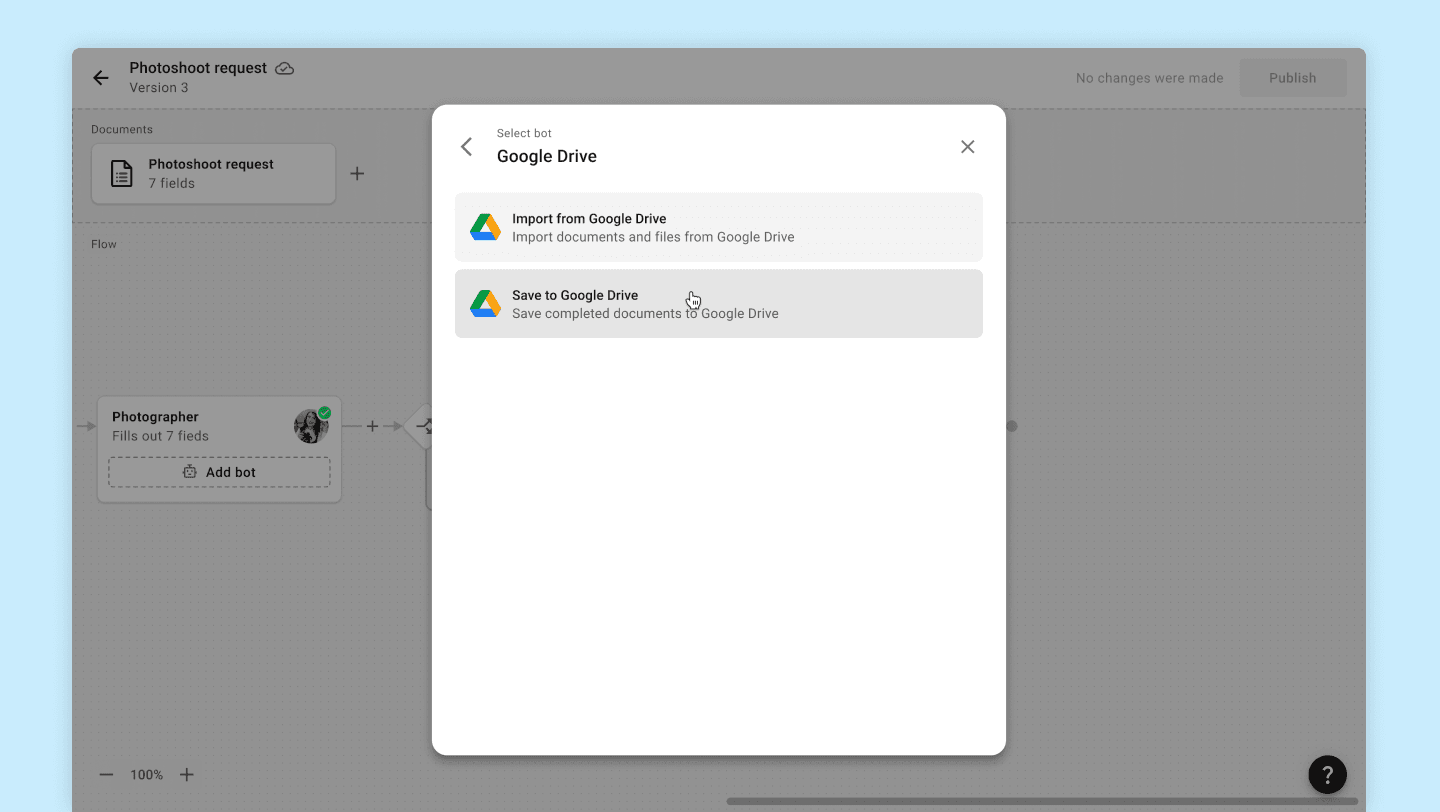
Various bot variants for Google Drive
‘Export to Google Drive’ setup and test
‘Export to Google Drive’ is one of the most popular bots in airSlate Workflow. Despite the complex technical foundation, our UX research and user interviews have enabled us to create a straightforward, linear bot setup process.
Let's explore the setup process.
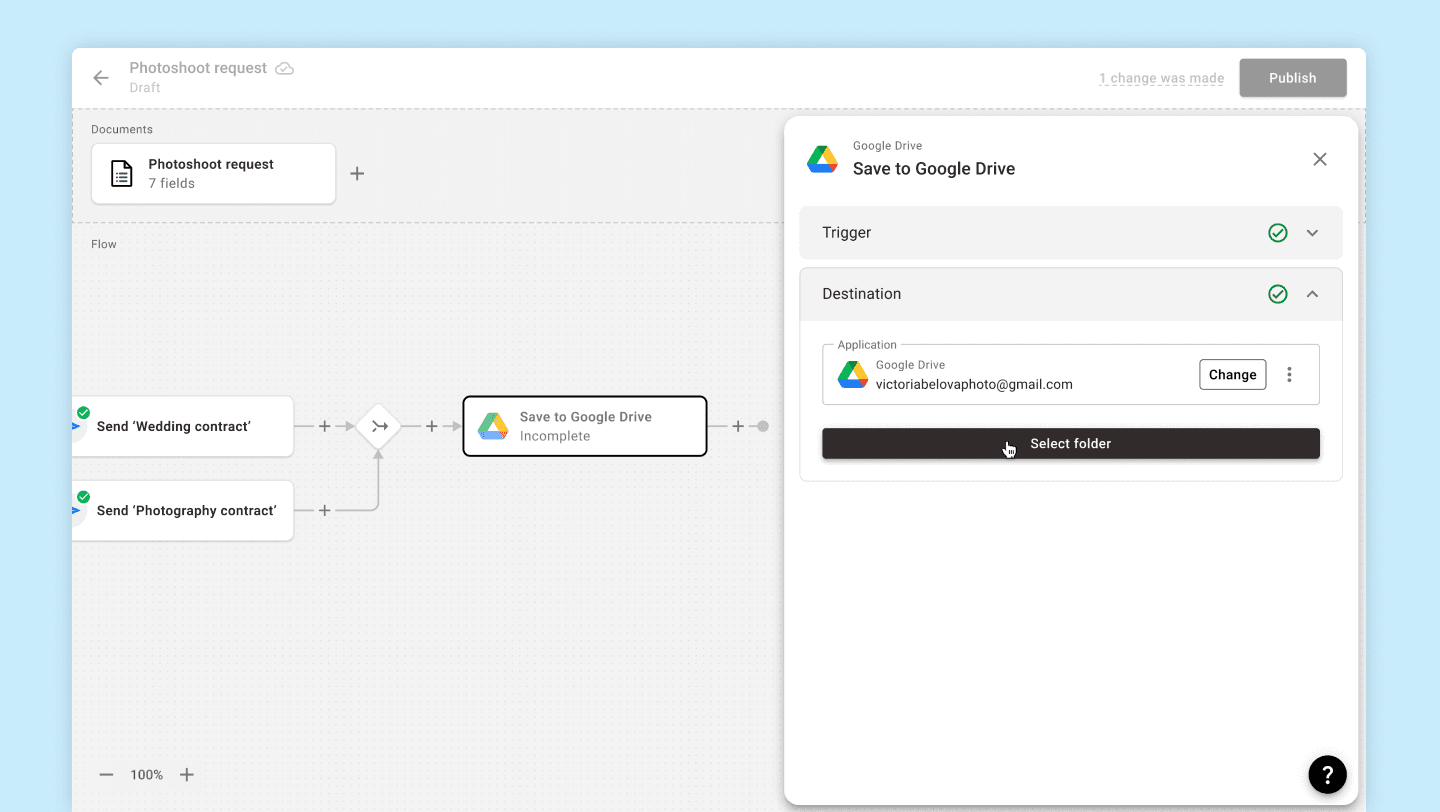
‘Destination’ empty state 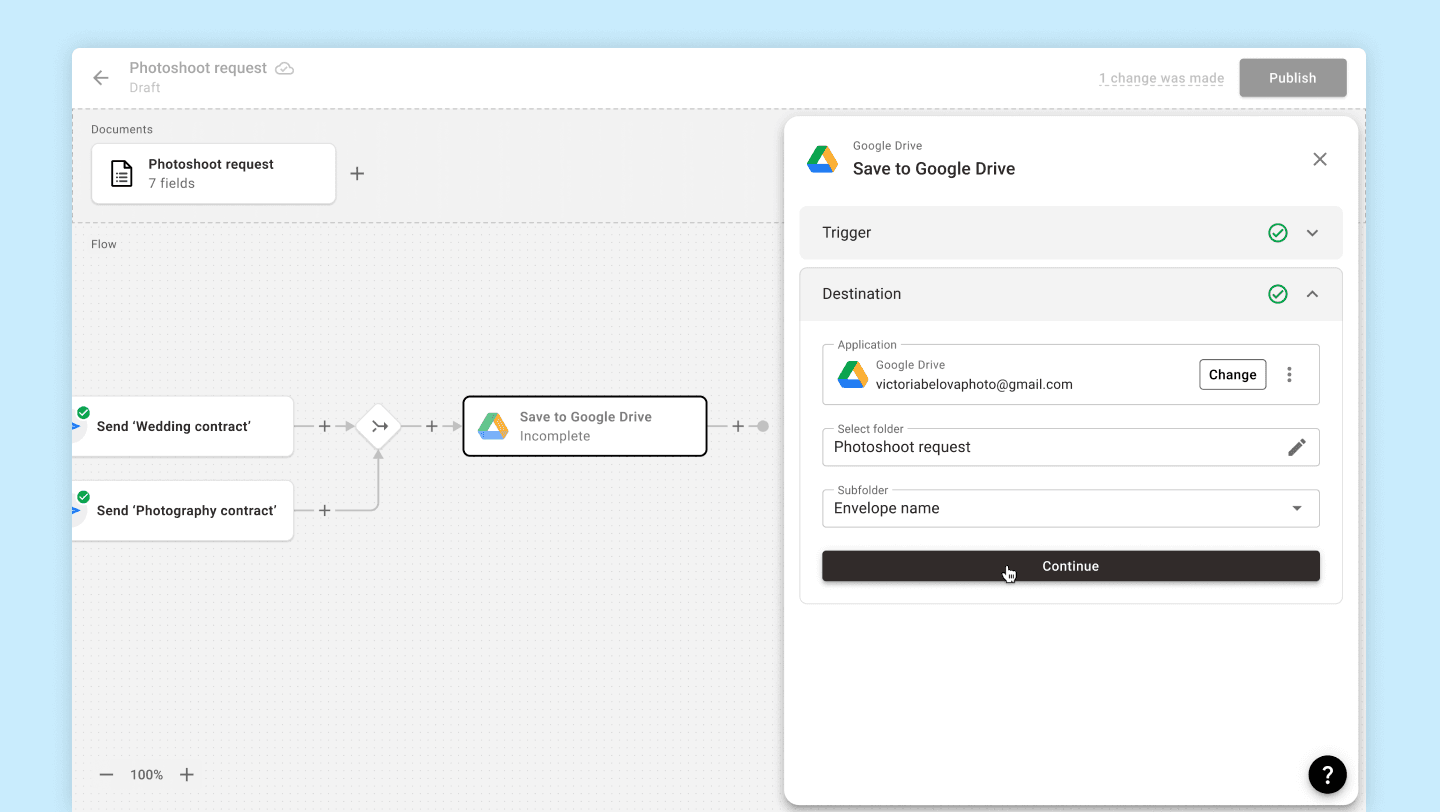
Destination folders configuration 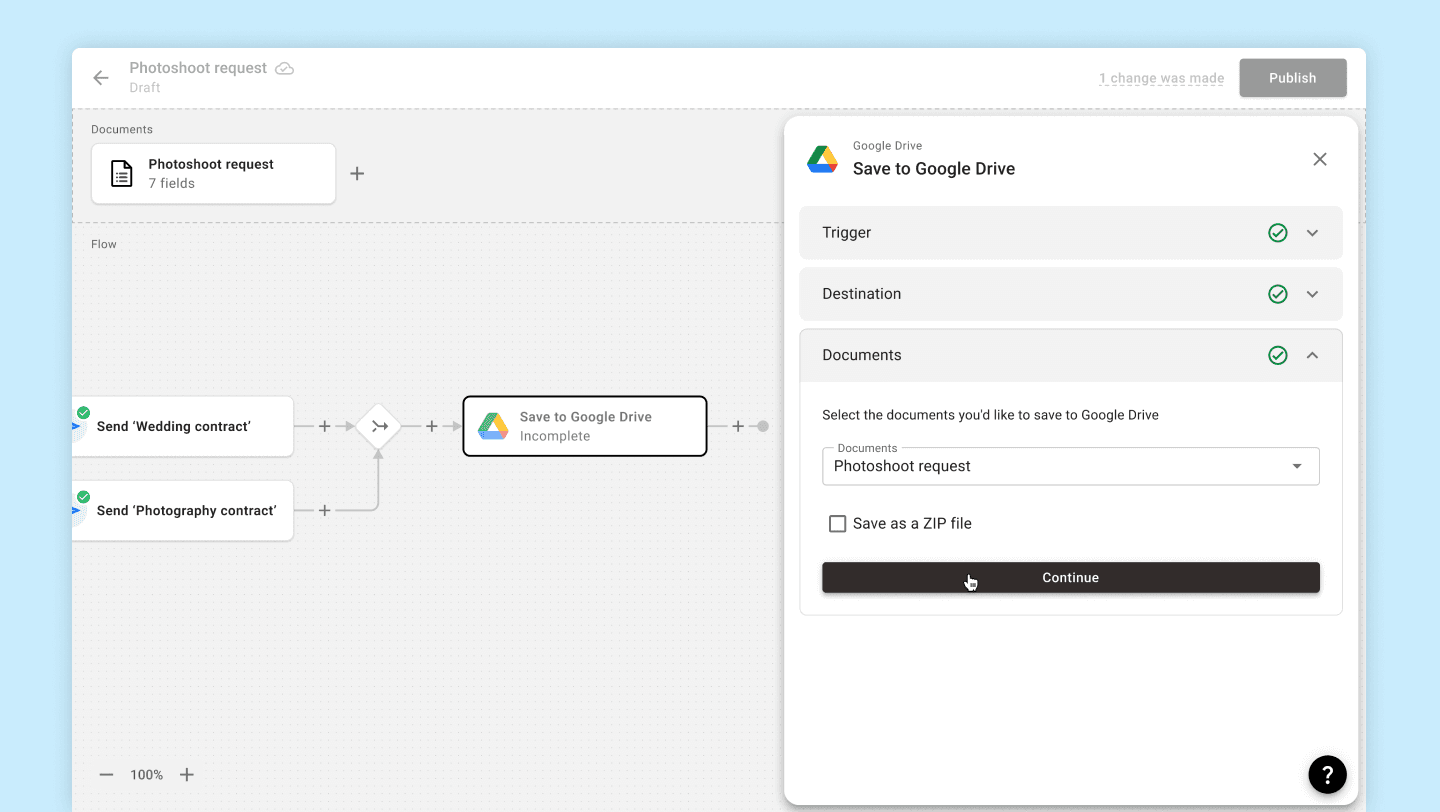
Documents to export configuration 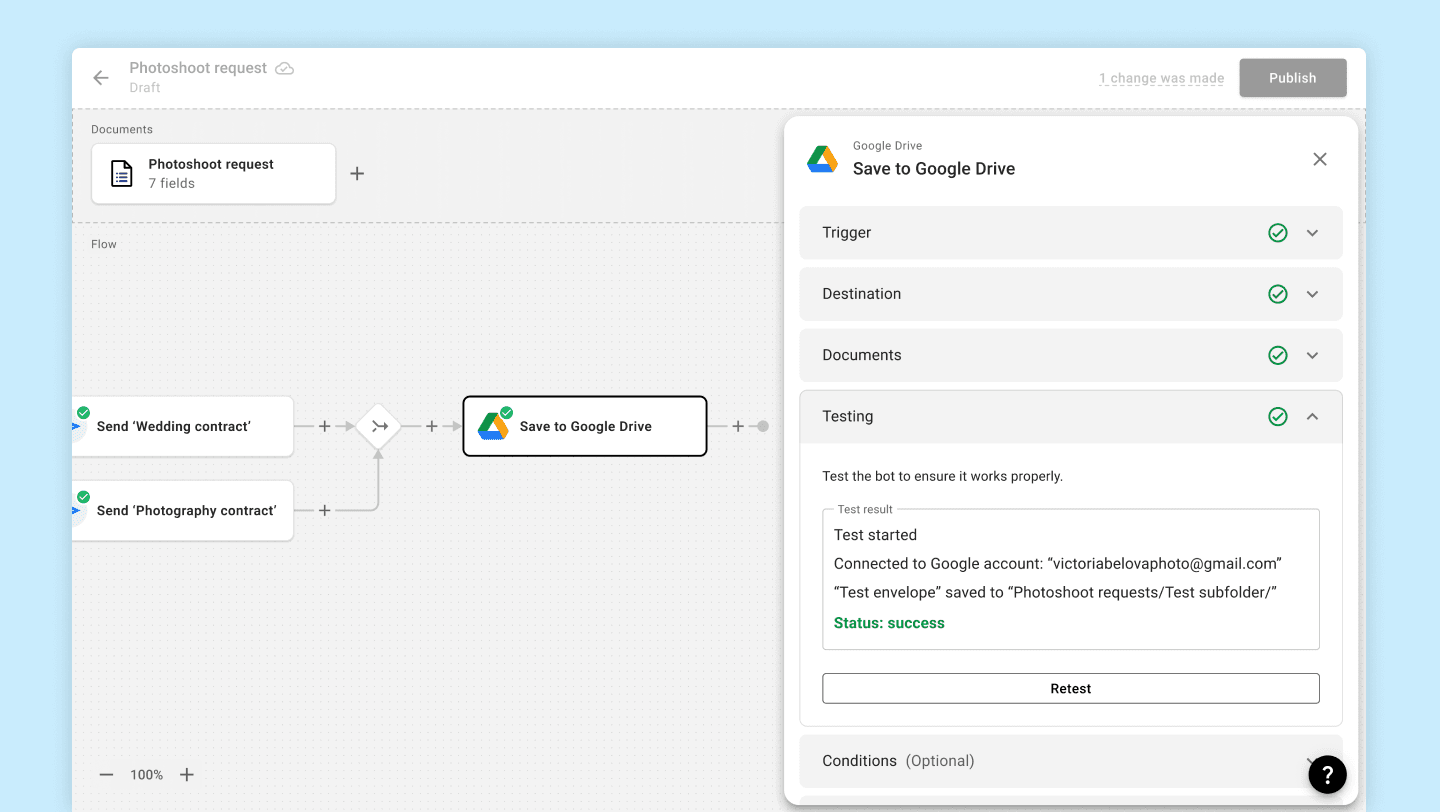
Bot configuration test
‘Export fields to Google Sheets’ mapping
Bots have different structures and sets of functional blocks. For example, in ‘Export fields to Google Sheets,’ there is an additional section called ‘Data mapping,’ where the user specifies which field values will be exported to Google Sheets.
Let's skip the previously seen blocks and move directly to ‘Data mapping’ and its features, such as the modal window with the document and the AI assistant, which significantly speeds up the often tedious process of matching columns and fields.
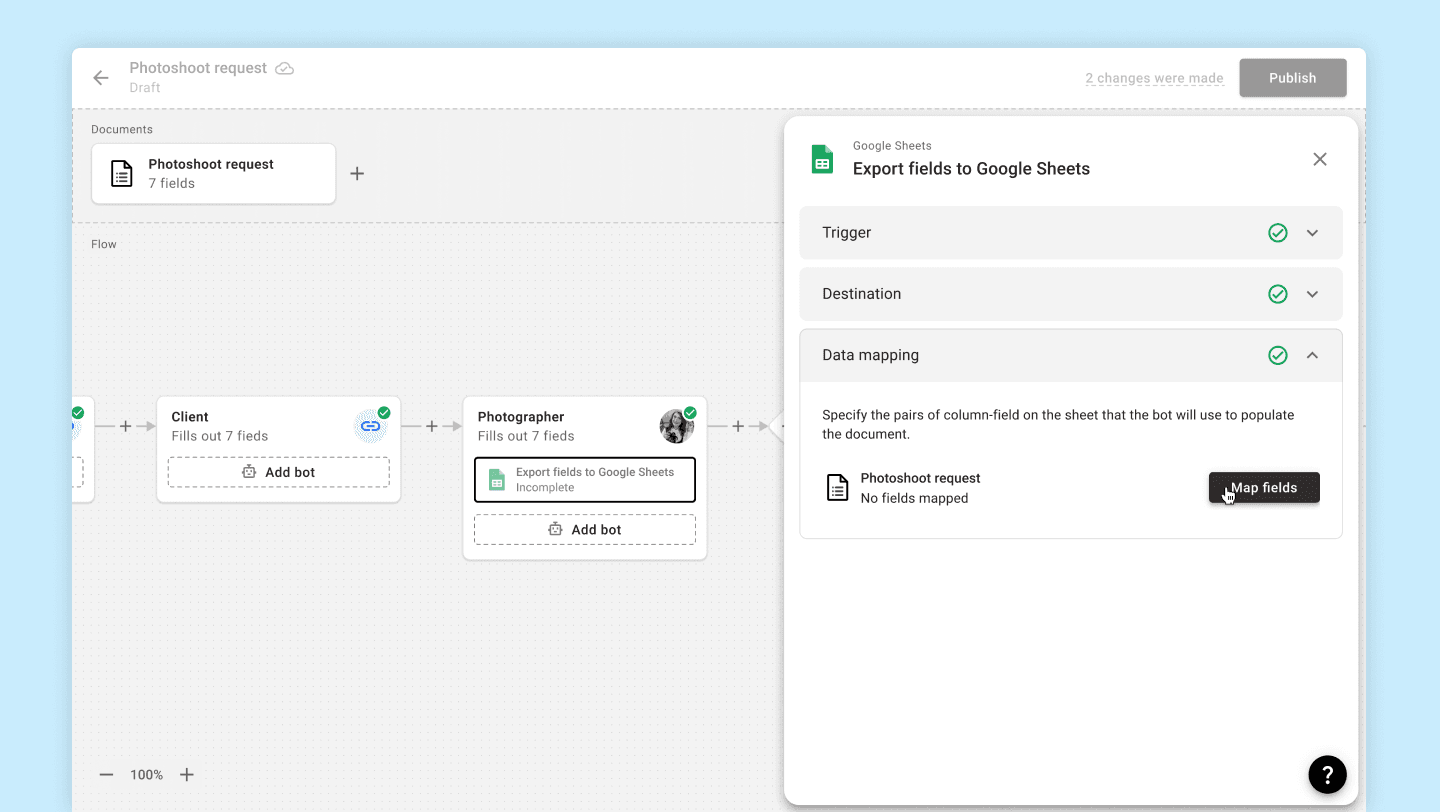
Data mapping empty state 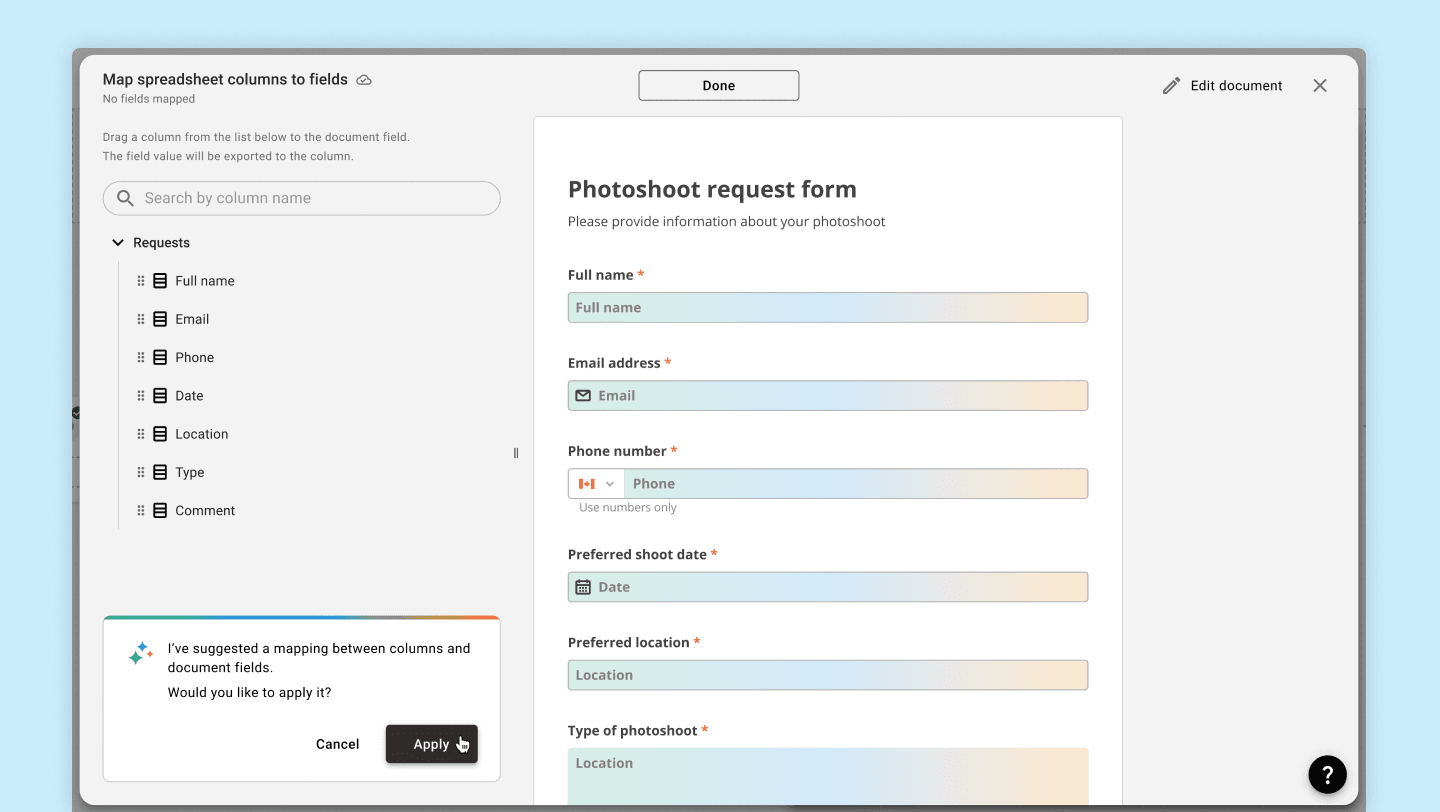
Mapping modal window - AI suggestions for mapping 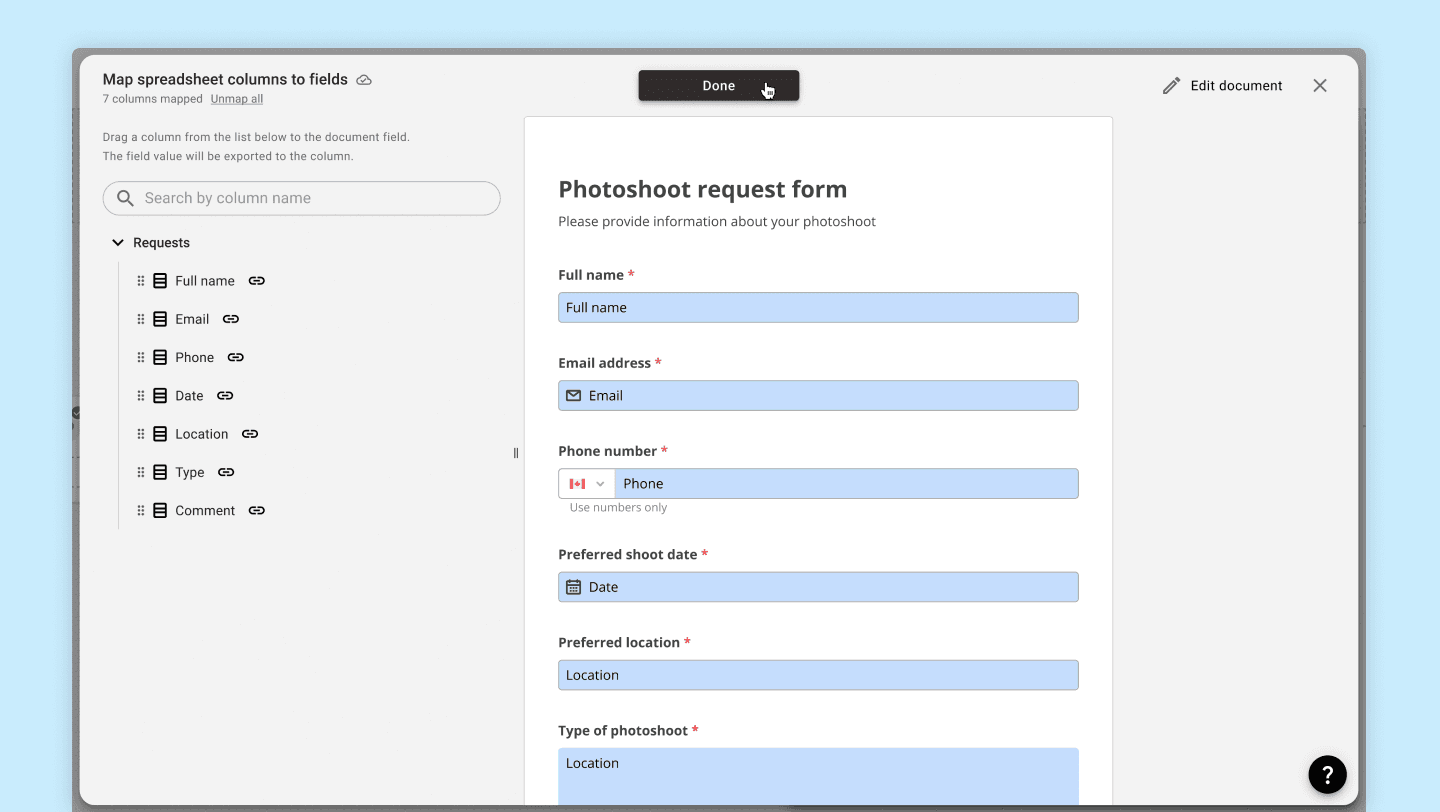
Mapping modal window - columns mapped with fields 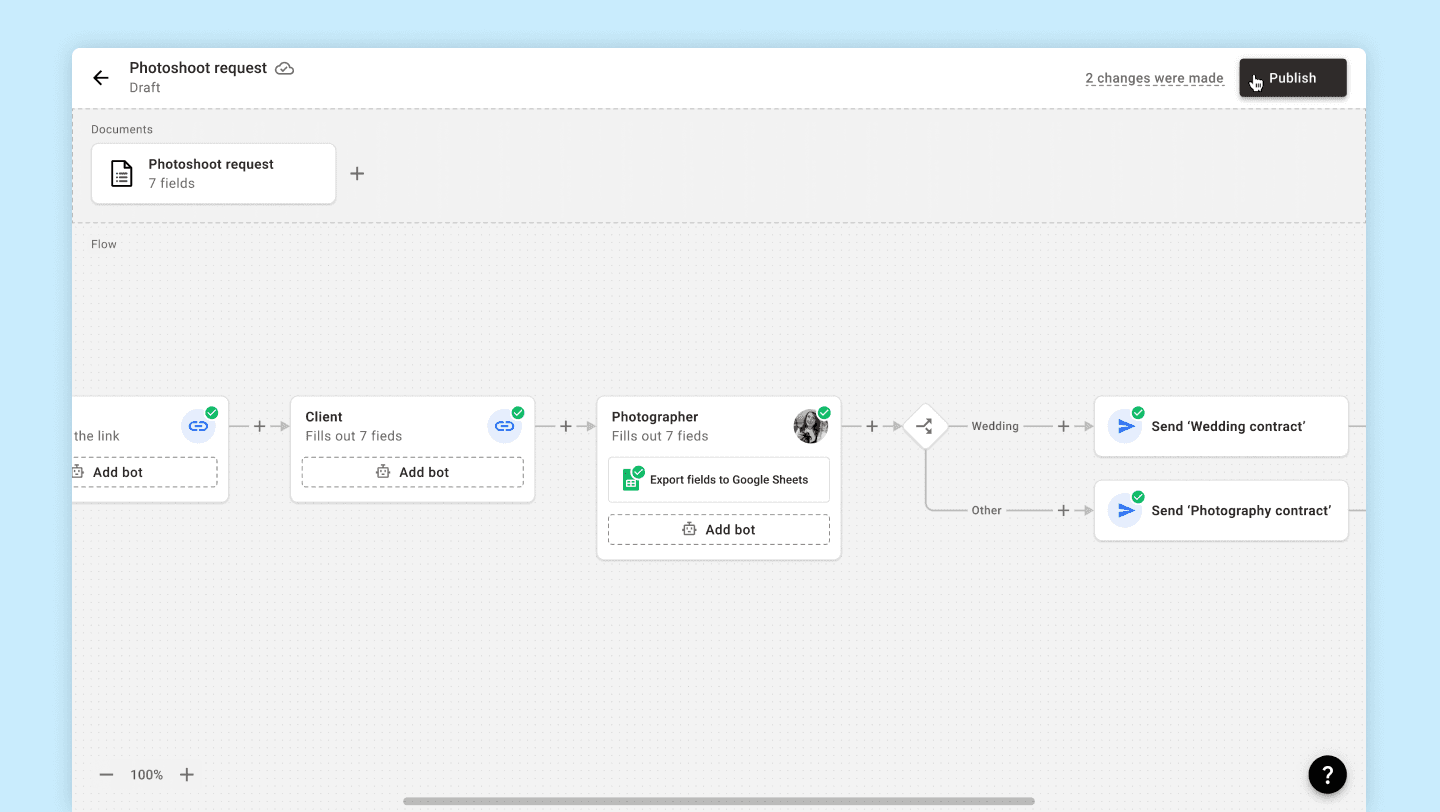
Workflow ready to be published 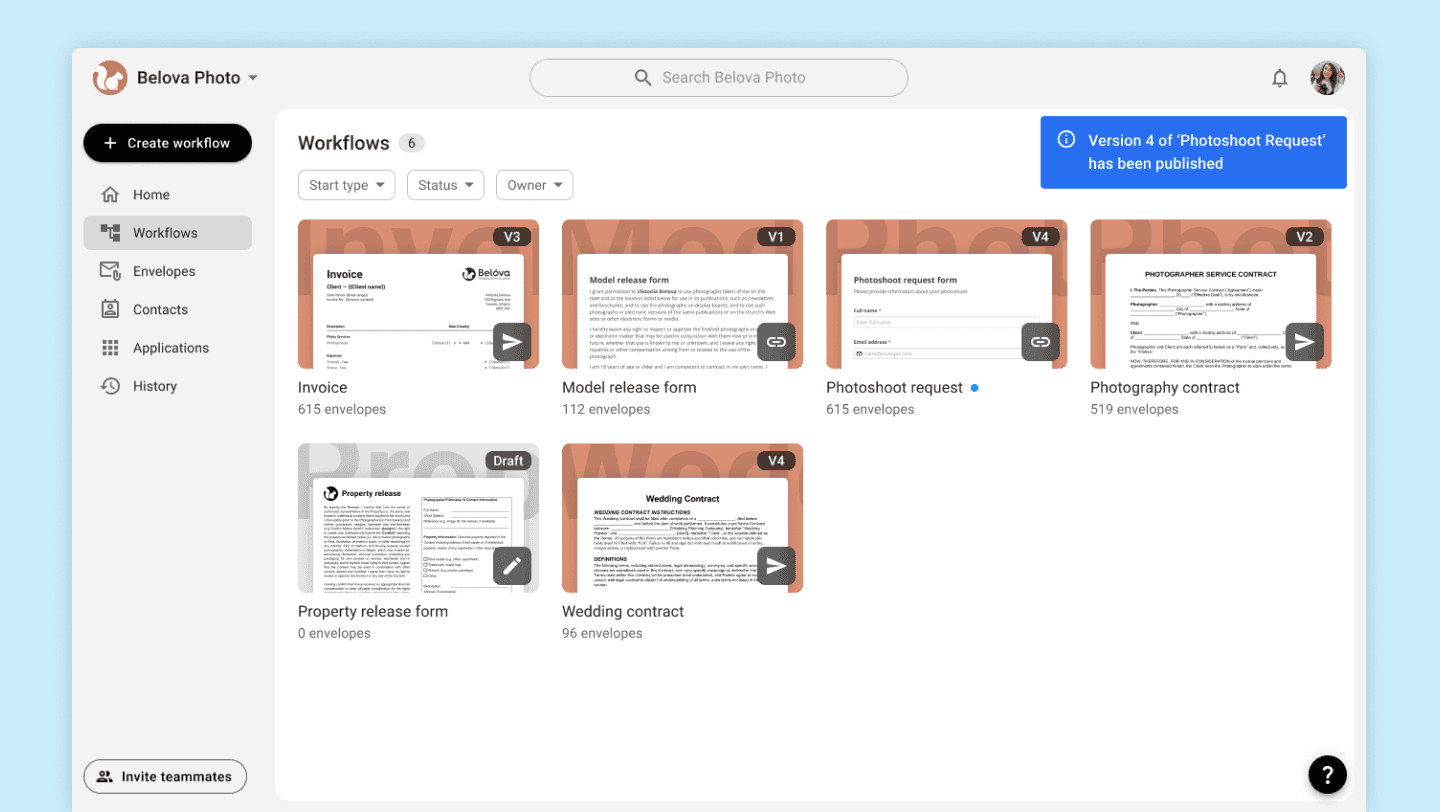
Workflow page - published Workflow
Conclusion
In this article, we covered the basic components of the Workflow diagram as well as the setup mechanisms for two popular bots: ‘Export to Google Drive’ and ‘Export to Google Sheets.’
However, a significant portion of interesting functionality and ideas were left out, which would have turned this article into a massive literary tome.
Want to learn more about prefill bots, conditional logic for bots and recipients, or the difference between bots on the diagram and within a recipient? Contact me using the information below.